

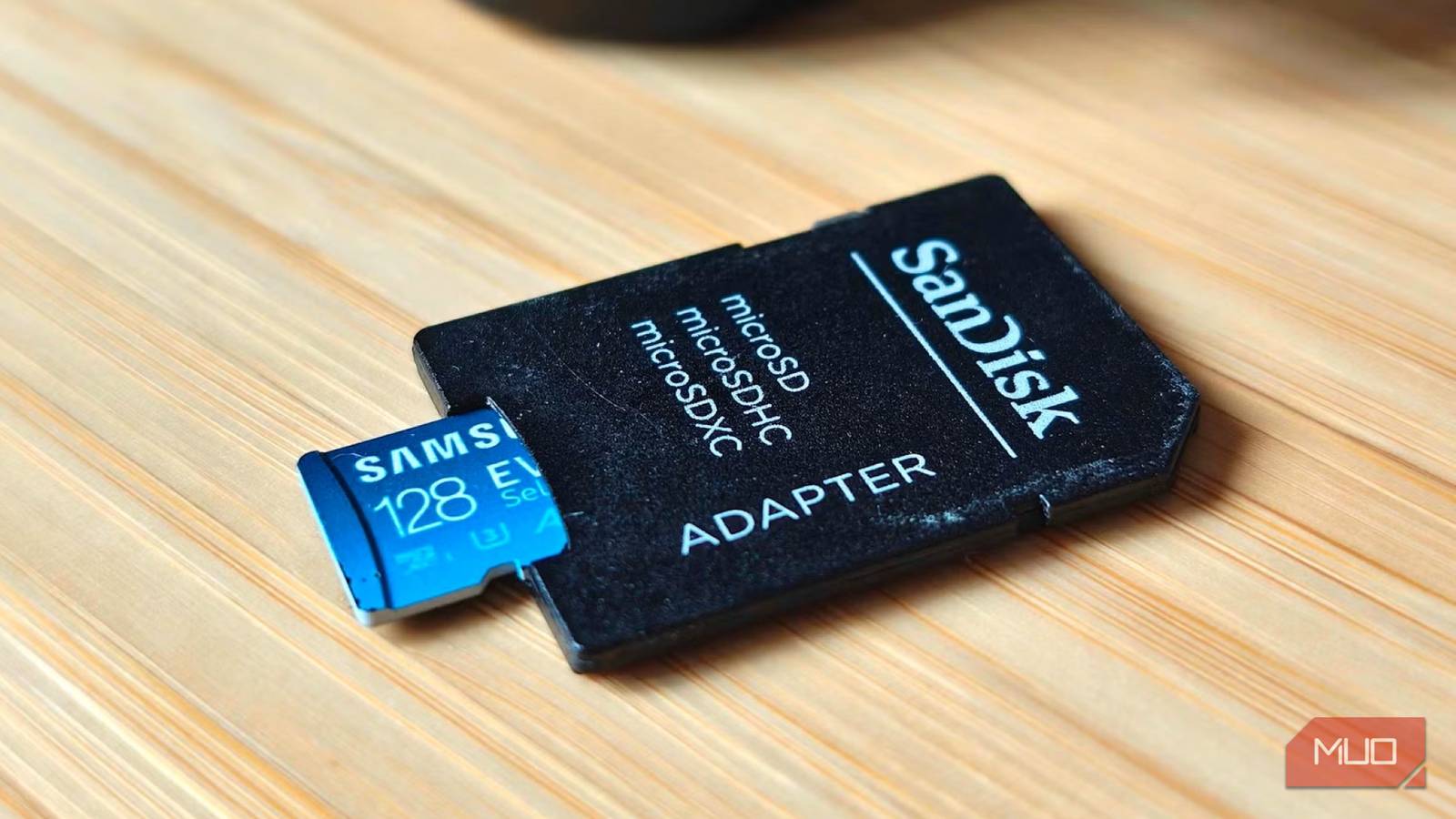
Physical wear and tear is the first warning sign
A battered SD card shouldn't be trusted
SD cards may be tiny, but their small size makes them more susceptible to physical damage. A simple drop onto a hard floor, repeated insertion and removal cycles, or exposure to moisture can leave visible marks. Discoloration, cracks in the plastic housing, bent or damaged contact pins, and signs of corrosion are all indications that the card's structural integrity is compromised. While such physical damage does not guarantee immediate failure—the card may still function for months—it significantly increases the risk of data loss. The internal flash memory chips can become dislodged or their electrical connections weakened, leading to intermittent read/write errors. Professionals recommend inspecting your SD cards regularly, especially those used in cameras, drones, or dashcams that experience frequent movement and environmental stress.
Manufacturers design SD cards to withstand a certain amount of handling, but the reality is that the rigid plastic shell offers limited protection against impact. In the early days of flash storage, cards were even more fragile, but modern designs have improved durability with reinforced edges and water-resistant coatings. Nevertheless, any visible defect should prompt immediate action: back up all data and replace the card. Do not rely on a damaged card for critical tasks like recording an event or storing important documents.
Missing or corrupted files are a major red flag
It's never random
One of the most unnerving signs of a failing SD card is when files suddenly become unreadable or disappear entirely. Photos that once opened fine now show error messages, video playback stops abruptly halfway through, or entire folders vanish only to reappear later. This behavior is not random—it occurs because the flash memory cells inside the card wear out over time. Each cell has a limited number of program/erase cycles (typically between 3,000 and 10,000 for consumer-grade NAND flash). As cells degrade, the controller must take longer to find valid write locations, and eventually it cannot reliably store data. The file system may become corrupted, leading to file allocation table errors that manifest as missing or unreadable content.
Some users mistakenly attribute these issues to a software glitch in their camera or computer, but the SD card itself is often the culprit. If you encounter corrupted files, try reading the card on a different device using a direct connection (avoid cheap card readers). If the problem persists, immediately copy every retrievable file to a reliable storage medium. Do not attempt to format the card thinking it will fix the issue—formatting erases the file system but does not repair failing memory cells. In fact, formatting may accelerate failure by forcing the card to rewrite the entire memory array. The best course is to retire the card and invest in a new one from a reputable brand.
Saving or transferring files becomes hit-or-miss
Don't ignore those errors
When an SD card begins to struggle with basic file operations, it is waving a major red flag. Saving a photo from your camera might fail halfway, copying a batch of files to your computer may stall repeatedly, or the same file might copy correctly on one attempt but fail on the very next. These inconsistencies stem from the card's internal controller attempting to manage bad blocks—areas of the flash memory that can no longer hold data reliably. The controller marks these blocks as unusable, but if too many appear, the card's write speed drops and operations become unpredictable.
It is important to differentiate between card issues and problems caused by the host device or adapter. A faulty USB card reader, an aging camera's write speed, or a damaged microSD-to-SD adapter can also produce errors. To isolate the cause, test the card in a different device using a known good reader. If the errors follow the card, the card is failing. Many users ignore occasional transfer failures, assuming a simple retry will succeed. While that may work once or twice, the underlying problem worsens. Prolonged use of an unreliable card can lead to complete failure, making data recovery extremely difficult and expensive. Once you confirm the card is the source of errors, treat it as read-only—do not write any new data—and back up everything immediately.
Detection problems usually mean trouble is coming
Format prompts are rarely a good sign
Detection issues often start subtly. An SD card may work perfectly in your camera but fail to show up when plugged into a laptop. Sometimes the issue is simply a loose connection or a driver problem, but if the card is repeatedly undetected across multiple devices, it indicates a deeper hardware failure. Many cameras and computers will prompt you to format the card before use, report that the card has 0 bytes of storage, or display write-protection errors even when the physical lock switch is in the unlocked position. These symptoms arise when the device cannot read the card's file system because the flash memory's master boot record or partition table has become unreadable.
What makes detection issues confusing is that a failing card may still work normally on some devices while failing on others. This inconsistency is due to differences in how each device's card controller handles errors. For example, a high-end camera may be more tolerant of minor errors, while a budget smartphone's card reader might refuse to mount the card entirely. As a general rule, if you receive any prompt to format a card that previously worked, do not format it immediately. First, attempt to read the data using recovery software like Recuva, Disk Drill, or PhotoRec. Formatting will overwrite the file system and make recovery much harder. Once you have extracted everything possible, the card should be retired. Formatting a new card properly in the device you intend to use it with can reduce the chance of detection problems, but it will not fix a physically failing unit.
Assume every SD card will fail eventually
SD cards are indispensable for many devices—cameras, drones, dashcams, handheld consoles, and even some smartphones. Their compact size and affordability make them attractive, but they are not designed for long-term archival storage. The NAND flash technology inside them has inherent limitations: finite write endurance, susceptibility to electrical damage, and vulnerability to data retention issues if not powered regularly. Even the most reliable brands like SanDisk, Samsung, and Kingston cannot guarantee a card will last beyond its warranty period (typically 1 to 5 years). Environmental factors such as heat, cold, humidity, and static electricity further reduce lifespan.
The best strategy is to treat every SD card as temporary storage. Always maintain the 3-2-1 backup rule: keep at least three copies of your data, store them on two different types of media (e.g., internal hard drive and cloud storage), and ensure one copy is physically separate from the others. For professional photographers or videographers, cards should be replaced every one to two years, or immediately after any of the warning signs appear. While SD cards rarely fail without giving some indication, waiting for absolute proof of failure can result in costly data recovery. Being proactive rather than reactive is the key to protecting your memories and work.
Source: MakeUseOf News