

macOS Golden Gate Public Beta: The 10 Features You Need to Test First
Apple has released the public beta of macOS Golden Gate, inviting users to explore a suite of enhancements before the official launch this fall. This update represents a significant leap forward, particularly with the introduction of Siri AI and a refined visual interface. Here are the ten standout features that deserve your immediate attention.
1. Liquid Glass: A Refined Visual Layer
The Liquid Glass effect, first introduced in earlier macOS versions, receives a major upgrade in Golden Gate. A new slider allows you to adjust transparency levels, balancing aesthetics with legibility. You can set a clearer version that lets background content subtly show through, or a more opaque variant for improved readability. The system also enhances diffusion of complex visuals behind navigation bars and buttons, while darkened edges and brighter specular highlights add depth and separation between UI elements. This makes the overall interface more immersive without sacrificing clarity.
2. Redesigned Toolbars, Sidebars, and Windows
Apple has standardized design elements across the system. Toolbars in apps now feature uniform layouts with text headings and grouped controls that are easier to read. The number of icons in menus has been reduced, minimizing visual clutter. Windows adopt a consistent corner radius, moving away from the overly rounded corners of previous versions. Shadow effects have been reworked to help you instantly identify the active window when juggling multiple apps. Sidebars no longer float; they extend edge-to-edge, using a less distracting design, and icons in sidebars are colorized once again, aiding quick recognition.
3. Siri AI: The Conversational Assistant
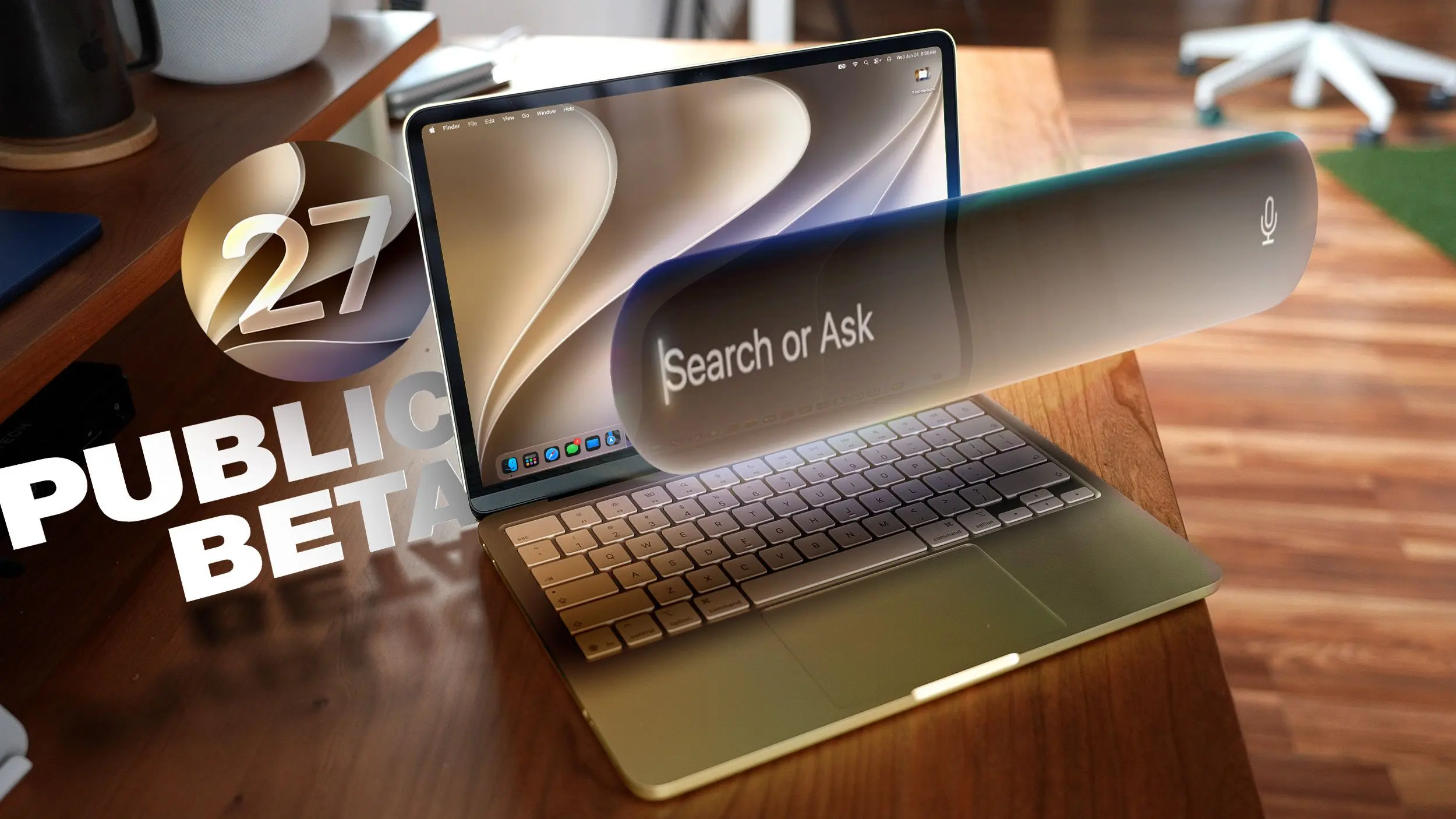
The most transformative change is Siri’s evolution into an AI-powered chatbot. You can now summon Siri via the Spotlight interface (Command+Space) and ask anything—from searching files to completing complex tasks. Spotlight is now a unified “Search or Ask” bar, combining file search and conversational queries. A dedicated Siri app lets you review past conversations, syncs across all your devices, and works on both Mac and other Apple platforms. Siri can see what’s on your screen, access personal data like emails and photos, browse the web, and execute actions within apps. This represents a fundamental shift from the old command-based assistant to a truly intelligent helper.
4. Visual Intelligence: Screen-Aware AI
Borrowing from the iPhone, Visual Intelligence on the Mac allows you to ask Siri about anything displayed on your screen. Use Command+Shift+Space or Command+Shift+6 to capture a region, or Command+Shift+5 to open the screen capture tool and select a Visual Intelligence icon. Siri can then search images, summarize content, translate text, identify objects, add dates to Calendar, create reminders, answer questions, and more. It even supports advanced features like extracting nutritional information from food images or splitting a bill from a receipt. This feature runs on-device for many tasks, ensuring privacy.
5. Write with Siri: AI-Powered Composition
Building on the Writing Tools from macOS Tahoe, Write with Siri offers system-wide assistance. Right-click in any text field and select “Ask Siri” to compose emails, messages, or get editing feedback. If you highlight text, Siri can suggest rewrites, replace words, or improve grammar. For new documents, Siri can generate text from scratch, analyzing your past communication style to match your voice. The update also enhances spell checking with grammar suggestions, catching errors that previously required third-party tools.
6. iPhone Mirroring: Resizable Windows
iPhone Mirroring gets a practical upgrade: you can now resize the mirroring window by dragging its corners. Depending on the app, you may be limited to a portrait iPhone aspect ratio, but many apps now support iPad or landscape layouts. This flexibility makes it easier to use iPhone apps directly on the Mac without feeling cramped.
7. Shortcuts: Natural Language Creation
Creating automations becomes accessible to everyone. The Shortcuts app now opens to a natural language interface where you describe what you want (e.g., “Send a message to my wife when I arrive at work”). AI builds the shortcut instantly. You can refine it with additional commands or manually tweak the steps. Once created, you run shortcuts from the app or via Siri voice commands. This simplifies adoption for users who found the previous drag-and-drop editor intimidating.
8. Safari Extensions: Custom AI-Generated Tools
Safari now allows you to describe an extension in plain language, and AI will generate it on the fly. Click the settings icon in the URL bar, choose “Describe Extension,” and type a request like “Close duplicate tabs” or “Highlight this word.” The extension appears immediately, ready to use. Apple provides examples such as a reading time badge, a 3-minute focus timer, font size adjustment, or even drawing a flower every time you open a new tab. This feature democratizes extension creation, letting anyone build simple tools without coding knowledge.
9. Safari Tab Grouping and Notifications
Safari gains intelligent tab grouping: tabs from related categories are automatically clustered when you open the tab view. Additionally, you can set a webpage to monitor for updates. Choose hourly, daily, weekly, or monthly checks, and the browser will notify you when content changes. This is ideal for keeping tabs on news sites, product pages, or documentation without constant manual refreshing.
10. Performance Improvements Under the Hood
Apple has cleaned up underlying code in Golden Gate, resulting in noticeable speed gains. Animations and interactions feel smoother, particularly in Safari, Mission Control, and Spaces. Scrolling is more fluid, and window positioning is more stable on external displays. AirDrop transfers complete faster, and network file browsing is snappier. Messages sync more reliably across devices. Search foundations in Spotlight, Photos, Mail, and Messages have been rebuilt; indexing is quicker, and recent results appear instantly. In Mail, search rankings now surface the most relevant emails first. These improvements make the system feel more responsive overall.
To install the public beta, sign up on Apple’s beta website, then go to System Settings > General > Software Update, select the beta update option, and choose “macOS Golden Gate Public Beta.” The update supports Macs with an M1 chip or later, plus the A18 Pro MacBook Neo. Intel Macs are not supported. Siri AI requires an internet connection for some features, and voice enhancements like natural voice selection and upgraded dictation need an M3 or later. Note that Siri AI will not be available in the European Union or China at launch.
Source: MacRumors News